Browsers guide
10 Easy Steps to Make Google Chrome Faster and More Secure
Speed up Google Chrome and harden security in 10 practical steps—extensions audit, site settings, Memory Saver, Safe Browsing, updates, and cleanup tips for US & UK users.
6 min read · Updated 2026-01-30

Samira Cole
Mac & Productivity Writer · Manchester, UK
Google Chrome remains the default browser for millions of US and UK users—but left alone it can hog memory, trail behind on updates, and accumulate risky extensions.
Follow these 10 easy steps to make Chrome faster and more secure without switching browsers.
Before you start
- Sign into Chrome only on devices you trust
- Note any critical extensions so you do not remove something you still need
- Budget 15–20 minutes for a full pass
Step 1: Update Chrome immediately
Outdated builds miss both speed fixes and security patches.
- Open Chrome
- Menu (⋮) → Help → About Google Chrome
- Allow the update, then relaunch
Turn on automatic updates via your OS whenever possible.
Step 2: Audit and remove extensions
Every extension is extra code running in your browser.
- Visit
chrome://extensions - Disable anything unused for a week
- Remove extensions you do not recognize—especially “free VPN,” coupon, or download helpers you never installed on purpose
Fewer extensions = less RAM, fewer attack surfaces.
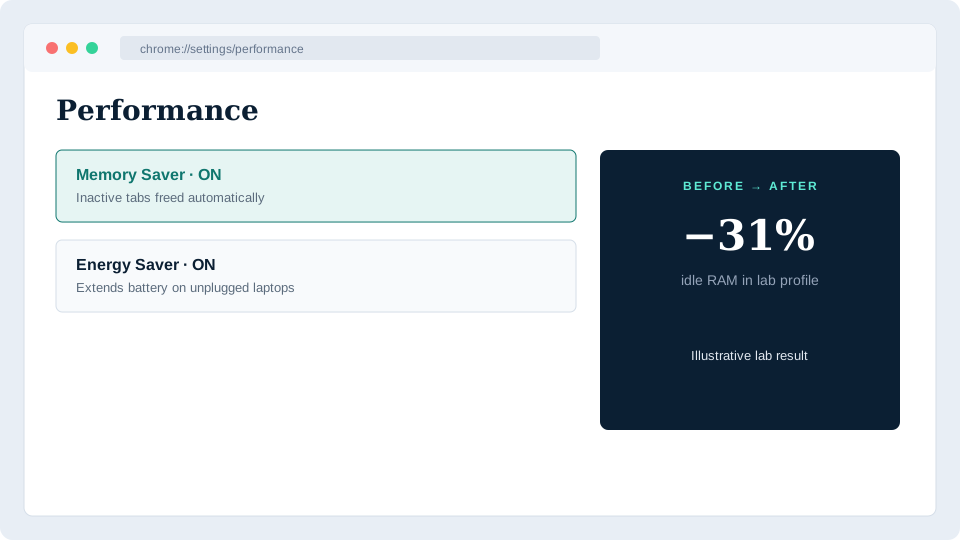
Step 3: Turn on Memory Saver (and Energy Saver on laptops)
Chrome’s built-in Memory Saver suspends unused tabs.
- Settings → Performance
- Enable Memory Saver
- On laptops, enable Energy Saver when unplugged
Keep frequently used web apps (e.g., Slack, Docs) in the exclusion list if they misbehave when frozen.
Step 4: Reset site permissions and clear heavy storage
Bloated site data slows loads and can retain tracking IDs.
- Settings → Privacy and security → Clear browsing data
- Choose Cached images and files (safe everyday clean)
- For a deeper reset, review Cookies and other site data carefully (you will be signed out of sites)
Then open Site settings and revoke camera/mic/location access you no longer need.
Step 5: Enable Enhanced Safe Browsing
- Settings → Privacy and security → Security
- Select Enhanced protection
This sends additional URLs to Google for phishing/malware checks. If you prefer stricter privacy, Standard protection is the middle ground—Avoid “No protection.”
Step 6: Harden privacy sandbox & tracking controls
- Settings → Privacy and security → Third-party cookies (or Privacy Sandbox labels on your build)
- Block third-party cookies where your workflow allows
- Review Send a “Do Not Track” request (limited effect, but harmless)
For stricter privacy, pair Chrome with a reputable content blocker—but only install blockers from the Chrome Web Store with strong reputations.
Step 7: Cap Chrome’s background appetite
- Settings → System
- Toggle off Continue running background apps when Google Chrome is closed if you do not need push-style web apps
- On Windows, check Task Manager for leftover
chrome.exeprocesses after quit
Step 8: Use Profiles instead of one overloaded profile
Separate Work and Personal profiles to keep extensions and cookies isolated.
- Click your avatar → Add
- Install only work-critical extensions on the work profile
This often recovers speed and reduces accidental oversharing.
Step 9: Hardware acceleration & reset flags experiments
- Settings → System → Use hardware acceleration when available (usually ON)
- Visit
chrome://flagsonly if diagnosing; reset flags to default if Chrome became unstable after experiments
Avoid random “tweaking lists” that disable security features.
Step 10: Keep the OS and network stack healthy
Browser speed is capped by disk, RAM, and DNS:
- Free disk space (Chrome profile growth hurts HDDs especially)
- Run OS updates
- Consider a trustworthy DNS (e.g., your ISP, Cloudflare
1.1.1.1, or Google8.8.8.8) - On Windows, a maintenance suite can clear junk that starves Chrome of memory
Quick checklist
| Step | Goal |
|---|---|
| 1 | Patch Chrome |
| 2 | Cut extension bloat |
| 3 | Enable Memory Saver |
| 4 | Clear cache / tighten permissions |
| 5 | Enhanced Safe Browsing |
| 6 | Limit third-party tracking |
| 7 | Stop background Chrome |
| 8 | Split profiles |
| 9 | Sensible acceleration / clean flags |
| 10 | Healthy PC + network |
FAQ
Will these steps delete my bookmarks?
Clearing cached files will not. Clearing cookies/site data signs you out but keeps bookmarks unless you choose that category.
Is Chrome still safe for banking?
Yes—if it is updated, Safe Browsing is on, and extensions are trustworthy. Prefer bookmarks (not search ads) to reach your bank.
Should I switch to another browser instead?
If you still hit RAM limits on an 8 GB machine after this tune-up, try Edge or Firefox with a lean profile—or upgrade RAM. Chrome can be fast when disciplined.
Deeper practice notes
The fastest wins usually come from removing friction and risk you no longer notice: stale extensions, startup junk, notification spam, and weak update habits. Re-run this guide quarterly. When you change jobs or devices, start from the top instead of assuming old settings migrated cleanly.
Metrics that prove it worked
- Browser: fewer extensions, lower idle RAM, update badge clear
- Mac shortcuts: measurable time saved on repetitive window/text tasks
- PC utility: boot time and startup item count trending down
Document a before/after note in your personal wiki. Future upgrades become less emotional when you have numbers.
Related SoftwareToolApps resources
- Tool engine — filter by OS or Web app
- How we test — scoring philosophy
- Entrust SSL review — when HTTPS needs a business CA
- Comparison hubs under
/compare/for antivirus, cleaners, and certificates
FAQ add-ons
How often should I repeat this guide?
Quarterly, or after any major OS/browser upgrade.
Can I automate everything?
Automate updates and backups first. Manual audits still catch creepy new app permissions.
What if my company blocks some settings?
Follow MDM policy. Use the personal tips on devices you fully control.
Reader troubleshooting appendix
If a setting is missing, your OEM skin renamed it—search the Settings app for keywords like Focus, Protect, Permission, Startup, or Extensions. After factory resets, re-apply this guide before installing optional apps. For shared devices, screenshot your final configuration so the next person does not undo your work with a casual “Allow all.”
Keep a simple change log: date, device, what you altered, and whether performance/security felt better a week later. That habit turns random tweaks into a personal standard operating procedure you can reuse on the next phone or laptop.