Mac guide
28 Essential Mac Keyboard Shortcuts to Double Your Productivity
Master 28 essential Mac keyboard shortcuts for Finder, screenshots, Mission Control, text editing, and Spotlight—practical shortcuts Mac users in the US and UK need every day.
6 min read · Updated 2026-02-18

Samira Cole
Mac & Productivity Writer · Manchester, UK
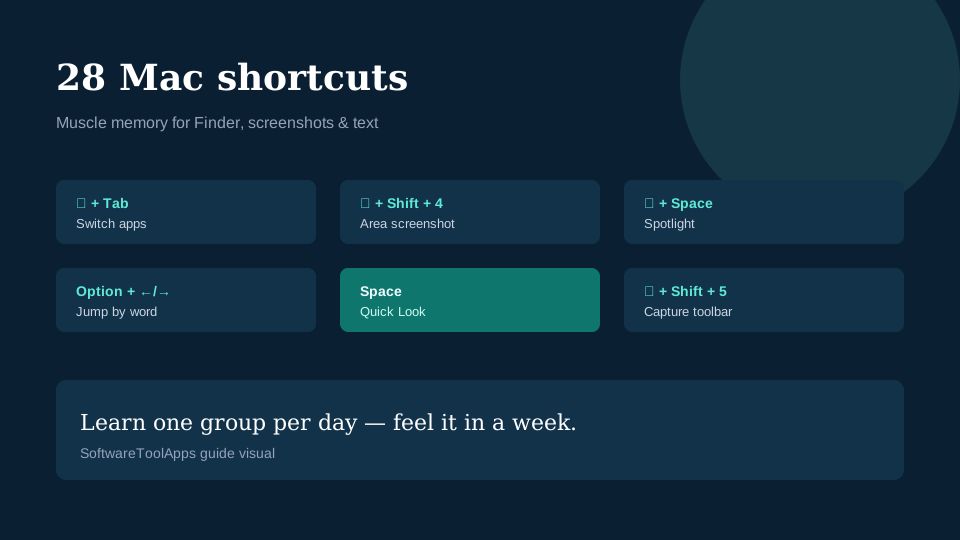
Learning a focused set of Mac keyboard shortcuts is still one of the fastest ways to reclaim time on macOS—whether you are on a MacBook Air for remote work or a Studio Display desk setup.
Below are 28 essential shortcuts grouped by job: navigation, screenshots, text, Finder, and system controls. Memorize one group per day and you will feel the difference within a week.
How to read Mac shortcut symbols
| Symbol | Key |
|---|---|
| ⌘ | Command |
| ⌥ | Option (Alt) |
| ⇧ | Shift |
| ⌃ | Control |
| ⌫ | Delete |
US and UK keyboards share the same Command/Option layout for these shortcuts.
Navigation & window management
- ⌘ + Tab — Switch apps
- ⌘ + ` — Cycle windows in the same app
- ⌃ + ↑ — Mission Control overview
- ⌃ + ↓ — App Exposé (windows for the front app)
- ⌘ + M — Minimize the front window
- ⌘ + W — Close the front window (not always quit)
- ⌘ + Q — Quit the app entirely
- ⌘ + H — Hide the front app
- ⌘ + Option + H — Hide everything except the front app
- ⌘ + , — Open the app’s Settings/Preferences
Spotlight, search & quick actions
- ⌘ + Space — Spotlight search (apps, files, calculations)
- ⌘ + Option + Space — Finder search window (on many macOS versions)
- ⌘ + Shift + Space or Globe/fn + Space — Switch input source (handy for US/UK bilingual typing)
Screenshots & screen recording
- ⌘ + Shift + 3 — Full-screen screenshot
- ⌘ + Shift + 4 — Select-area screenshot
- ⌘ + Shift + 4, then Space — Capture a single window
- ⌘ + Shift + 5 — Screenshot/recording toolbar (markups, timers, record screen)
Pro tip: hold Control while capturing to copy the image to the clipboard instead of saving a file.
Text editing power moves
- ⌘ + ← / → — Jump to line start / end
- Option + ← / → — Move by word
- ⌘ + Shift + ← / → — Select to line start / end
- Option + Delete — Delete the previous word
- ⌘ + Control + Space — Emoji & Symbols viewer
- ⌃ + Command + Space — Same emoji picker on many layouts
These alone can cut drafting time in Mail, Docs, and Slack.
Finder essentials
- ⌘ + N — New Finder window
- ⌘ + Shift + N — New folder
- ⌘ + Delete — Move selection to Trash
- ⌘ + Shift + Delete — Empty Trash (confirm prompt)
- Space — Quick Look preview without opening the file
Honorable extras many pros add next: ⌘ + Option + L (Downloads), ⌘ + Shift + G (Go to Folder), and ⌘ + I (Get Info).
Build the habit in 7 days
| Day | Focus |
|---|---|
| 1–2 | App switching + Mission Control |
| 3 | Screenshots (3 / 4 / 5) |
| 4–5 | Text cursor jumps |
| 6–7 | Finder + Trash + Quick Look |
Print this page or pin it in Safari Reading List until the muscle memory sticks.
Customize shortcuts on macOS
- Open System Settings → Keyboard → Keyboard Shortcuts
- Remap Mission Control, Screenshots, or App Shortcuts
- Keep ⌘-based muscle memory consistent across US and UK machines if you travel with both
FAQ
Do these work on MacBook and iMac the same way?
Yes—the modifier keys behave the same across Apple Silicon and Intel Macs running modern macOS.
What about the Globe key on newer MacBooks?
Globe/fn doubles as a shortcut hub for emoji, Dictation, and input sources. You can remap it under Keyboard settings.
Is there a built-in cheat sheet?
Hold the ⌘ key after opening a menu to reveal shortcut labels for that menu’s commands.
Deeper practice notes
The fastest wins usually come from removing friction and risk you no longer notice: stale extensions, startup junk, notification spam, and weak update habits. Re-run this guide quarterly. When you change jobs or devices, start from the top instead of assuming old settings migrated cleanly.
Metrics that prove it worked
- Browser: fewer extensions, lower idle RAM, update badge clear
- Mac shortcuts: measurable time saved on repetitive window/text tasks
- PC utility: boot time and startup item count trending down
Document a before/after note in your personal wiki. Future upgrades become less emotional when you have numbers.
Related SoftwareToolApps resources
- Tool engine — filter by OS or Web app
- How we test — scoring philosophy
- Entrust SSL review — when HTTPS needs a business CA
- Comparison hubs under
/compare/for antivirus, cleaners, and certificates
FAQ add-ons
How often should I repeat this guide?
Quarterly, or after any major OS/browser upgrade.
Can I automate everything?
Automate updates and backups first. Manual audits still catch creepy new app permissions.
What if my company blocks some settings?
Follow MDM policy. Use the personal tips on devices you fully control.
Reader troubleshooting appendix
If a setting is missing, your OEM skin renamed it—search the Settings app for keywords like Focus, Protect, Permission, Startup, or Extensions. After factory resets, re-apply this guide before installing optional apps. For shared devices, screenshot your final configuration so the next person does not undo your work with a casual “Allow all.”
Keep a simple change log: date, device, what you altered, and whether performance/security felt better a week later. That habit turns random tweaks into a personal standard operating procedure you can reuse on the next phone or laptop.
Bookmark this page and revisit after major OS updates so menu renames do not erase your hardening work. Small recurring maintenance beats heroic annual cleanups every time.